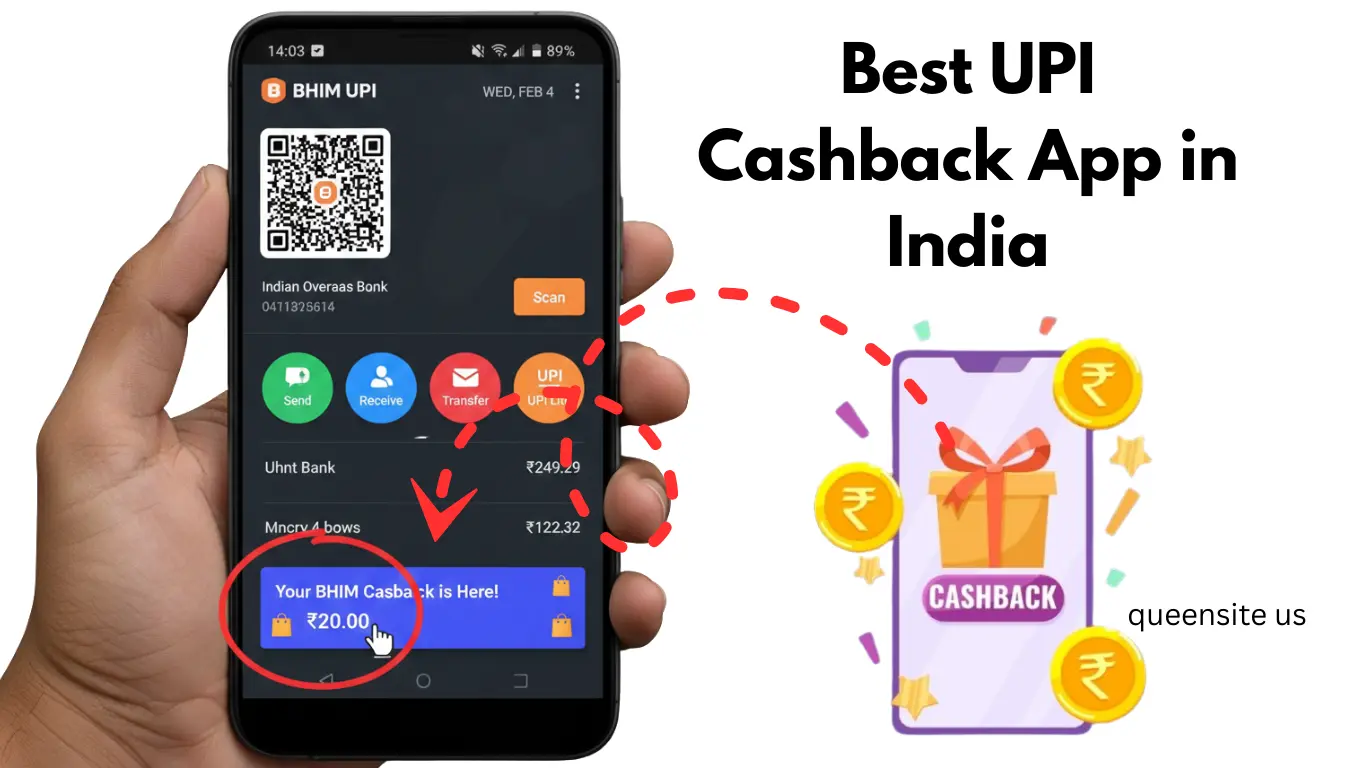
In today’s post, we are going to see how to open the government’s BHIM UPI application on our mobile phone. So, let’s look at this post in full detail. We will clearly see how to open the government’s BHIM UPI application on your mobile phone.
Install BHIM UPI App from Play Store
Go to the Play Store on your mobile and type “BHIM UPI application” and search. A BHIM UPI application will appear. So, install that application on your phone and open it. After opening, the display will ask you to select a language. So, select the language and then select the “Proceed” option at the bottom.
Verify Mobile Number with OTP
After selecting that option, a new page will open. On this page, you will see an option to enter your mobile number. So, enter your mobile number there. After entering, check if everything is correct and then select the “Proceed” option at the bottom. After selecting the proceed option, an OTP will be sent to your mobile number. The application will automatically generate and retrieve OTP. You don’t need to do anything; just leave it as it is.
After it retrieves the OTP, the display will ask for permission, so grant the permission. After giving permission, you will see a small box at the bottom that says ‘I agree.’ So, tick that box. After ticking it, select the ‘Proceed’ option again. After selecting that option, it will ask for permission again, so grant the permission. After granting permission, you will be asked to select the SIM card on your mobile. So, select your SIM card and then select the ‘Proceed’ option at the bottom.
After selecting the ‘Proceed’ option, it will be verified. So, wait for two seconds. After verification, you will see two options on the display. That is, it will ask if you want to use the PIN you have already set on your mobile or if you want to generate a new PIN. Since I’m doing this for the video, I’m selecting the existing PIN on my mobile.
After selecting it, select the ‘Next’ option at the bottom. After selecting the ‘Next’ option, the next screen will display ‘Welcome.’ Below that, it will ask for your name; enter your name there. After entering your name, the display will again ask for a reference code. So, if someone is referring you to the app, provide the referral code. If no one has referred you and you don’t have a referral code, just leave it blank; there’s no need to fill it in.
Add Your Bank Account
So, after entering your name, look below and select the ‘Next’ option. After selecting that option, your government’s BHIM UPI application will open on your mobile. In this, select the ‘Skip’ option. After selecting it, the BHIM UPI application will open on your mobile. After opening it, you need to add your bank account. Right at the beginning, you’ll see the option ‘Link your bank account now. ‘So, select that option.
After selecting, you need to search for and select the bank where you have an account. Since I’m doing this for the video, I’m searching for and selecting IOB bank. I currently have an account with Indian Overseas Bank. So, I’m typing “Indian Overseas” and searching for it. Below the search results, you can see “Indian Overseas Bank” listed. So, I’m selecting that bank.
After selecting, look below and select the “Confirm” option. After selecting the confirmation option, your bank account has been added to the BHIM UPI application. After adding it, you’ll see an option to “Set UPI PIN” for this bank account in the app. So, select that option and create a UPI PIN. Since I’m doing this for the video, I’m selecting that option and creating a UPI PIN.
Set UPI PIN Using Aadhaar or Debit Card
After selecting that option, you’ll see the “Set UPI PIN” option again below. Select that option again. After selecting it, you’ll see two options: Debit Card and Aadhaar Number. You can proceed with either your debit card or your Aadhaar card number. Since I’m doing this for a video, if you look below, I’m going to select the option that says “Aadhaar Number” and demonstrate it using my Aadhaar card. You should select whichever option you prefer.
After providing the details for your chosen option and clicking “Proceed” below, you’ll then need to select the “Accept” option. Since I’m providing my Aadhaar number, it’s asking for my six-digit Aadhaar number at the end. So, I’m entering my Aadhaar number here. You should enter the details according to the option you select.
After entering the Aadhaar number, you will receive an OTP from Aadhaar to your mobile number. The mobile will automatically generate and retrieve OTP. You don’t need to do anything; just leave it as it is. After the mobile generates and retrieves the OTP, an option to create a UPI PIN will appear on your mobile screen.
Once that option appears, create a six-digit UPI number of your choice. After creating it, select the “Confirm” option below, and you will have to wait a couple of seconds. After waiting for a moment, you will see a message on the display saying, ‘UPI PIN has been set successfully.’ Then, it will take you back to your profile. So, this is how you open the government’s BHIM UPI application on your mobile. Thank you.
Google Pay, BHIM app customer care, bhim payment app, BHIM app download, Mobikwik, BHIM SBI Pay app download,