Introduction to LED Notification Designs
“Hi friends! In today’s post, we’re going to see how to enable these kinds of designs in LED notifications. I’m going to teach you how to do that. For this, you will need an application. The link to this app is below; please download it.
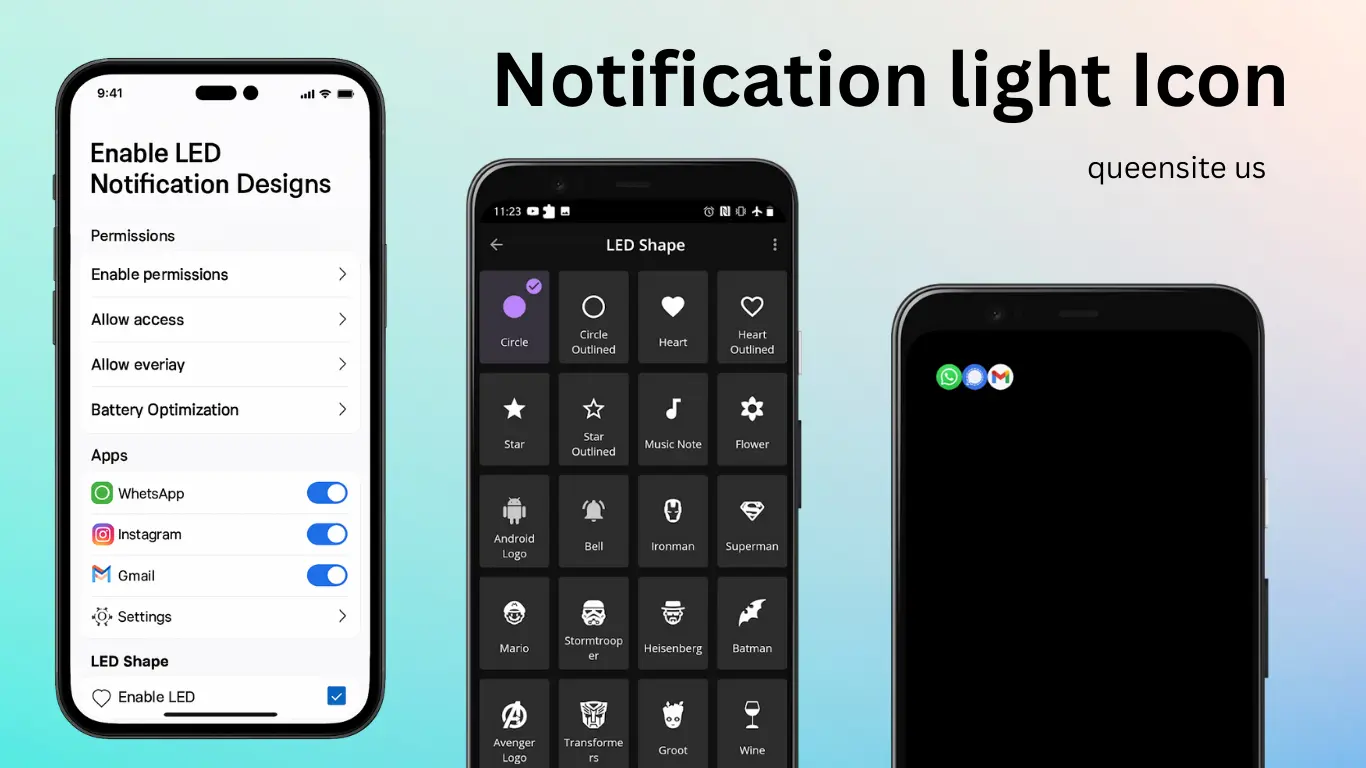
So, those who want it can download and use it. The app’s interface will look like this. Upon opening the app, it will ask you to enable permissions. So, enable them. After enabling, it will ask you to allow access. So, allow it. After allowing, go back.
After going back, it will ask you to allow overlay permissions as well. So, click on that and allow it. Next, you will see an option called Battery Optimization. When you click on it, a pop-up like this will open. In this, if you have selected ‘Optimized,’ click on ‘Not Optimized.’ After clicking, go back from there. After going back and clicking the arrow mark, you will reach the final complete page. Once you click the tick option here, it will be complete.
After this, you will…” For whichever apps you want to receive LED notifications, simply enable those apps. I’ll show you by enabling WhatsApp.
You can enable many more apps. Now, let’s go to the settings option. Wait, before that, you can enable many more apps in this second section. Many apps that are not in the first list are given in these second options. Those who need it can enable them. After that, the apps we have enabled are shown in this third bell icon.
Check this as well. Now let’s open the settings. The settings here are very easy. There’s an option called “Enable LED.” Enable that. Only then will it work. So, how many times should it blink? The blink interval asks how many seconds it should blink for. We can keep the default settings, like three seconds. If you need to change it, you can do so. After that, it asks if you want to be notified even for missed calls. It’s up to you; you can enable it if you want. So, I have enabled it.
And then… As you can see, there’s the double tap to wake up the screen option. So, all of that is given in this app. You can use that if you want. So, now, if you’re wondering how to move this, there’s a joystick. You can change the position using that joystick control. You can see it yourself. As I move the joystick, it’s moving. You can even set the size you need. So, right now it’s at 30. Let’s set it to 50. So, it’s a bit bigger now. If you set it to 500, it’s very big. So, select the size you need. I’ll set it to 50.
After setting it to 50, it will ask you to save. It will ask if you want to buy it or use it for free. If you want it for free, you’ll have to watch an ad. After watching the ad, they will give you a certain amount of time for free. If you want more than that, you’ll have to pay money to buy it.
Now, let’s save this. After saving, you’ll see LED shapes. So, in this, they have given a lot of shapes. However, all of them will only work if you watch ads. Otherwise, you’ll have to pay money to use this app. It will be like a model.
It’s your choice. So, if you just want to try it out, you can freely click on the ads and use it. They will give it to you for free for a limited number of days. We have selected the Avengers logo. Let’s test this; wait a moment. So, let’s go back. Position: we can change the position. It’s very small. 50 is very tiny. Let’s set it to 100. If you set it to 1000, it’s too big. You can set the size you need. So, I’m setting it to 150. This is a reasonably good and decent height. That’s why I’ve kept it like this.
After this, let’s test it. Wait, I’m turning off the screen. I’ve asked my friend to send me a message on WhatsApp. As soon as he sends the message, we get a super cool LED notification. The Avengers logo. You can see it yourself. It’s awesome to use. So, friends, you should definitely download this app and try it out. It’s amazing. I have to say it’s next level. Your mobile will get a different look. As you can see, he has sent a message saying ‘Hi’ on WhatsApp.