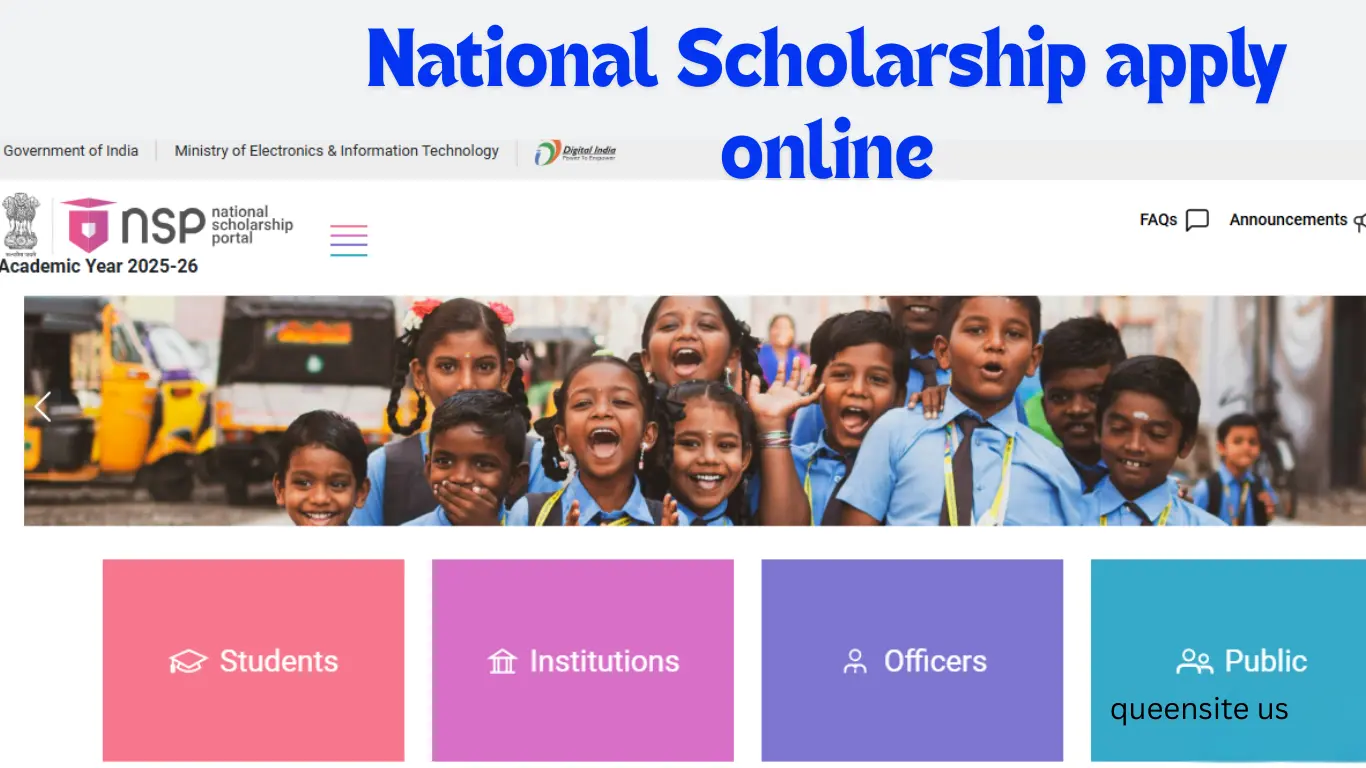
Hello Friends, today we are going to see a super informative article. That is, in this post we are going to see how to create a new one-time registration account online to apply for the National Scholarship.
First, open this website. I will give the link to this website: scholarship.gov.in. This is the official website. Okay, the Central Government’s National Scholarship Portal for the academic year 2024-25 has been opened. So, those who are interested and eligible, please apply. What kind of scholarship have they given, what kind of scheme have they given, who can apply, how much money is given, and what is the eligibility?
Now, when you apply for the scholarship online, it will be like coming to OTR and creating it. They have given it here: ‘Apply for One Time Registration (OTR).’ If you come and click on that option, it will open like this. So, it will be like creating a compulsory OTR. They have given it next to it, ‘Register. ‘ If you come and click on that option, it will be like you are creating an account.
Mobile Number Verification for NSP OTR Registration
They have given a total of four steps. First, register your mobile number, then e-KYC, and then finish. They have given the first guidelines here; check if everything is clear. After checking, they have given two terms and conditions. If you come and click on the option ‘Next,’ it will be like you have registered your mobile number. Enter the correct 10-digit mobile number. If you come and click on the option ‘Get OTP,’ an OTP will come and be sent to the mobile number you gave. Now, if you have received the OTP, you can see it and type it.
So, the OTP will be entered for the mobile number, the mobile number you give. So, if you enter the correct OTP, which they have given a captcha below, look at that captcha and type it. Whatever they have given, look at it and type it and click on the option ‘Verify.’ If you come and click on the option ‘Verify,’ and if you see the mobile number, the OTP will be verified.
Aadhaar e‑KYC in National Scholarship Portal OTR
The next step is to ask for your Aadhaar card. Here, you will be asked to enter your 12-digit Aadhaar card number, which is the same as the Aadhaar card you used to apply for the scholarship. If you click on the ‘Get OTP’ option, then after you click ‘I agree’ to the Aadhaar consent provided, the OTP will be sent to the mobile number linked to your Aadhaar card. So, if the OTP has been sent to the mobile number you have given in your Aadhaar card, type it in.
After typing, you will see a captcha below, so you can type that captcha as you see it. If you don’t know if the CAPTCHA line is correct, refresh, and another CAPTCHA will come. If you click on the option ‘Verify’ after entering the captcha, if your Aadhaar card is linked to your bank book like this, then ‘NPCI Success’ will appear. If your Aadhaar card is not linked to your bankbook properly, then you should go and link it and then go to the bank and get your Aadhaar card.
Personal Details Entry – NSP OTR Registration
All the information will open as it is on your Aadhaar card. Check that it is correct. If you check it and come down like that, then you will be asked to enter the details. First, they have asked for your mother’s name. Here, they will ask for your mother’s name. Then, they will ask for your father’s name. Here, they will ask for your father’s name, whatever it is, and you will type it correctly. Next, they have asked for your email ID.
Go here and give your email ID. It is optional; if you have one, give it to me. Those who do not have an email ID come and skip it. Skip it and see that they have given a captcha below; look at that captcha line and type it. Again and again, the CAPTCHA line will come and ask. So, after typing and checking that all the information is correct, they have given it below; see that you have to come and click on that option, ‘Finish.’
If you see your account like this, it has been created. So, you have been given a reference number to create the account. Make a note of the reference number; it will be sent to your mobile number. After this, what do you do? There is a mobile app called Your NSP OTR. There is a face authentication feature in it; you will have to do that. So, go to the Google Play Store and first install this NSP OTR app. After installing it, go there and verify your face like Aadhaar authentication; only then will your OTR come and be complete, and only then can you apply for this OTR. Now let’s see how our face authentication works.
👉 “If you’re planning your finances alongside scholarships, see our Savings Schemes Guide
First, come and install this app. They have given three options here. When you come to OTR, you can also register through this app by clicking on the ‘Register’ option. We have already registered. Now they have given you the last option, ‘e-KYC by Face Authentication’—that’s what we are going to do. So, there are three options; you just have to come and click on that option, and a page like this will open.
Now, when you created your account, you would have been given a reference number; just look at that reference number and type it. If you type it and click on the ‘Send OTP’ option, the OTP will be sent to the mobile number you gave. After entering the OTP, you will see a captcha below; the captcha will be the same as the one you typed.
Face Authentication in National Scholarship Portal OTR
First, enter the OTP, then you will see a captcha; just look at that captcha and type it. Okay? If you type it and click on the ‘Next’ option, the Aadhaar information will be loaded and open. If you checked the correctness and gave ‘Proceed for Face Authentication’ and then gave OK, you will see ‘Aadhaar FaceRD’ here; it will be like you have installed that app. They have given a separate app for it on the Google Play Store.
Open the Play Store and install Aadhaar FaceRD; go there and open it, then you will be asked for some terms and conditions; if you tick and click on the ‘Proceed’ option, if you go there and blink your photo, it is enough; if it turns green and comes out successfully, then it will be correct. So, you are going to do face authentication. After giving the correct answer, this is how your successful OTR will come, complete it, and give you your OTR number. You come and copy this and bring it.
This is how your OTR will come; complete it. Only after you complete the face authentication will you be able to apply for this scholarship scheme. Okay? Now, after the OTR comes, what do you do? It will be like you came to log in and change your password; you come and do that too. This is the first number that has come, the OTR number.
Create Login Password for NSP OTR Registration
After you successfully log in, you will go here and enter the OTR, and as for the password, they will send the password to the mobile number you gave. Enter that password and see a captcha below; you just have to click on the ‘Login’ option after entering that captcha. So, if you come back and see it, you will be asked for another new password, which you will have to enter.
As for the password, it will be sent to your mobile. After entering, you will be asked for the current password. As for the current password, you will be asked to type the current password that was sent to your mobile. Then you will be asked for a new password. Go here and give the password you have created. The first letter is caps, then a small letter, a special character, and then numbers—give a password like this and go to the confirm password and enter the same password again.
After entering, you will be given a captcha below again. Look, that captcha will be like you came back and entered it. Okay? So, after giving your current password and entering your new password, you are given a captcha below; you have to type that too and click on the ‘Next’ option, after which your account will be created and you can log in, after which you can give your OTR password and log in using the new password.
This is how you can create a one-time registration for the first time. So, for those who have applied for the compulsory scholarship, you can create a one-time registration and apply for the scholarship for the first time. Because this year they are asking you to create an OTR for the first time, remember and create it. It will be a simple process. You will do e-KYC and face authentication; once you complete both of these, your OTR will be complete. After creating the OTR, change the password, and then you can log in with your login password and apply for the scholarship.