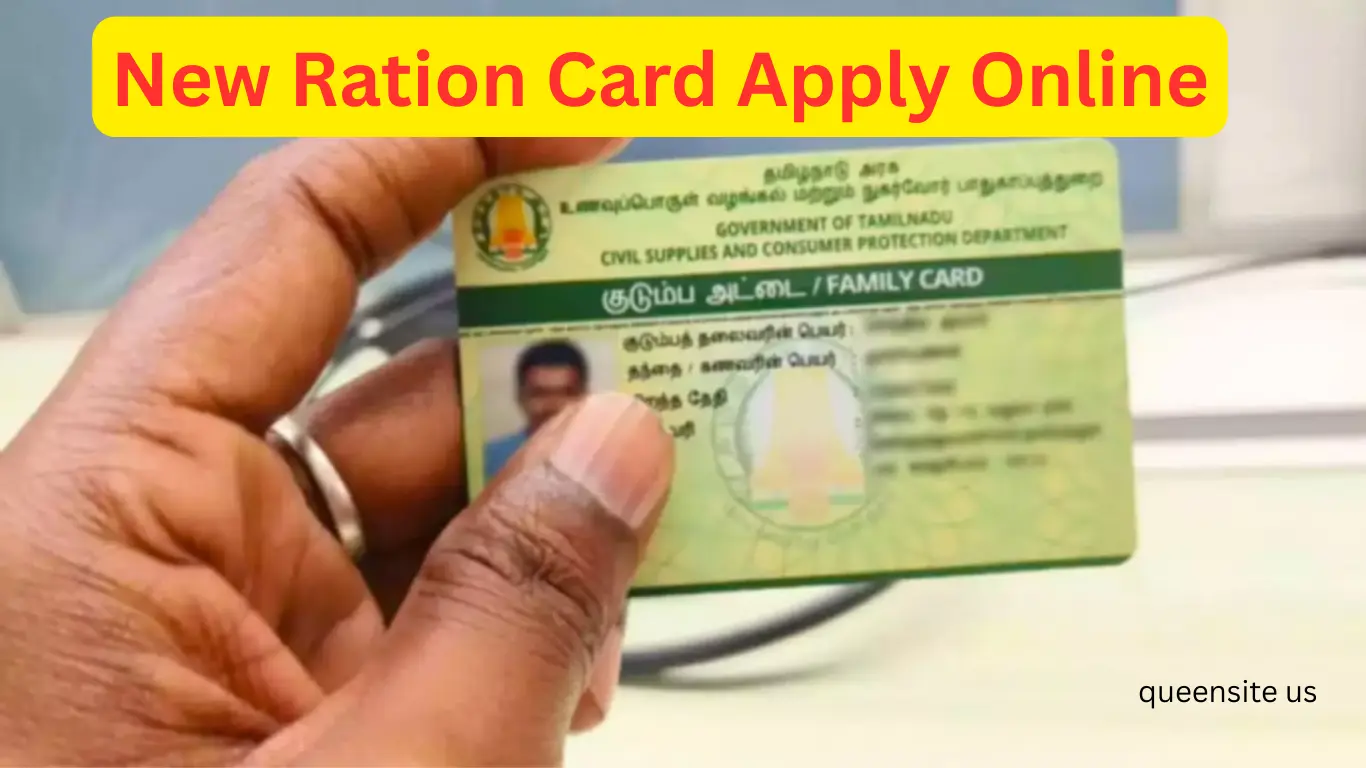
Hello everyone, today we are going to see how to apply for a new ration card online. You can apply for this from home; you don’t need to go to an e-service center. You can easily apply for it from your home.
Tamil Nadu Ration Card Online Apply – Step by Step Guide
To apply for a new ration card online, go to the webpage tnpds.gov.in. This is the official website of the Department of Food Supplies and Consumer Protection, Government of Tamil Nadu. On the right side, you will see an option that says ‘Apply for New Electronic Card’; click on it. After clicking, you will see the application form for ‘Applying for a New Electronic Card.’
Here, below, you will see ‘Name of the Family Head.’ Enter the name of the person you want to designate as the head of the family on your ration card. Enter their name in English, and on the right side, there will be an option to enter it in Tamil as well. Enter their name in English, and then enter it in Tamil on the right side.
Next, enter their father’s or husband’s name below. Enter it in English and also in Tamil. Below that is the address line. First, enter your street name in Address Line 1. Enter it in English, and then enter it in Tamil on the right side. After entering, scroll down a bit. If you scroll down, you’ll see Address Line 2. Enter your town or village name there. Enter your village name in English, and on the right side, enter it in Tamil as well.
On the right side, you will need to upload your photo. That photo will appear on your ration card. Upload it. After uploading, scroll down and select your district, your taluk, and your village.
Below, enter your PIN code. Enter your mobile number. After entering all this, scroll down a bit. This mobile number will be linked to your ration card, so enter it correctly. Otherwise, there will be an issue, and you won’t receive services related to your ration card.
After finishing, scroll down a bit. Below, you’ll see ‘Members.’ Now, you need to add all the members of your family, including the head of the household. On the right side, you’ll see an option called ‘Add Member.’ First, add the head of your family. Click on ‘Add Member.’ When you click here, you’ll see that the details of the family head, which you already filled in above, will appear. Fill in all the remaining details. Their name in Tamil and English has already appeared. Select their date of birth. Select their gender. Select their nationality.
Their relationship will be automatically set to ‘Family Head’ by default. The family head must be added first. Select their occupation. Enter their monthly income. Here’s an important note when adding a member: the family head must be added first.
Documents Required for Tamil Nadu Ration Card Online Apply
Here, you can enter your voter ID card details if you want, or you can leave it blank. If you are a person with a disability, please indicate ‘Yes’ or ‘No.’ Select the type of disability they have. If you have any supporting documents, you can upload them as well. Below, under ‘Other Documents,’ select their Aadhaar card. Upload their Aadhaar card PDF here. After uploading their Aadhaar card, click on ‘Upload.’
After clicking ‘Upload,’ enter their Aadhaar number here. Upload the file and click ‘Upload’ again; only then will it be uploaded. When you click on this ‘Upload’ button, it will be uploaded. Once you have uploaded it, you can see here that the size should be within 1 MB. The PDF you are uploading, the Aadhaar card PDF, should be within 1 MB. Upload it.
Once you click ‘Upload,’ you will receive a message saying ‘File uploaded successfully.’ If you receive that message, it means the upload was successful. Next, enter the Aadhaar number. Enter it and scroll down a bit. When you scroll down, you will find an option called ‘Save Member Details.’ Click on it, and your member will be added.
Here, after clicking, you must first add your head of the family. We have now added the head of the family. Next, add all the family members you want to include. For each family member, enter their name in English, their name in Tamil, their date of birth, their gender, their nationality, and their relationship to the head of the family.
If the head of the family is the wife, then add her husband’s name next. Select the husband’s occupation. Select the husband’s monthly income. You can add the voter ID card if you want, or you can leave it blank; it’s not mandatory. If they are a person with a disability, select ‘Yes,’ specify the type of disability, and upload any relevant document. Otherwise, select ‘No.’
Below, add the Aadhaar card of the head of the family’s husband. Select ‘Aadhaar Card’ and upload their Aadhaar card here. The PDF should be within 1 MB. Click on ‘Upload.’ Once you click upload, you will see ‘File uploaded successfully.’ Below, enter their Aadhaar number. Enter the number and scroll down a bit.
When you scroll down, you will see an option that says ‘Save Member Details.’
Click on it. After clicking, you will see that we have added the husband. You can add all the other family members you want to include. Here, you can see all their details displayed. After completing this, scroll down a little.
When you scroll down here, you’ll see the card selection section. This is the most important part. This is where many people make mistakes. Here, you’ll see many types of cards: Non-commodity card, rice card, sugar card, other. Select whichever one you need. I’m selecting the Rice card, as that’s what most people choose.
Here is the address proof section. This is the most important part. Here you will see options like Aadhaar card, electricity bill, passport, gas consumer card – many options will be given here. Select Aadhaar card. After selecting Aadhaar card, this is where many people make mistakes; they don’t know which documents to include. Here, you will only be able to upload a single file. So, what you need to do is, in one document, include your Aadhaar card, the head of the family’s Aadhaar card, and ensure that the address on the Aadhaar card matches the address where your gas cylinder is booked. Otherwise, your ration card application will not be approved.
Fill this out correctly. In a single file, include your PDF document… your Aadhaar card, your gas cylinder booking passbook, and all the other certificates you have, and upload it as a single file here. Make sure the file size is less than 1 MB. Add all the documents you have into a single file, select ‘Choose File’ here, and upload that single file. Because the address on the gas cylinder booking passbook and your Aadhaar address must be the same.
Now, they have made the gas cylinder details mandatory. They will only issue you a ration card if you have a gas cylinder registered in your name. Keep all those documents in a single file, save it as one file, and then select that file here using the ‘Choose File’ option and upload it. This is a crucial step, and many people make mistakes here. Don’t make this mistake. Otherwise, they will not approve your ration card. Your cylinder booking address and your Aadhaar address must be the same. Only then will they approve your ration card. Otherwise, they will not approve your ration card.
Now, I’ve selected ‘Aadhaar Card.’ Put all the documents in that single file. All the documents, like, for example, take a Word document. In that Word document, include your Aadhaar card, your voter ID if you have one, and your birth certificate if you have one. Also, take a copy of your gas cylinder booking document and include it in the same file. Upload that single file here. I’m mentioning this because many people make this mistake at this point.
Select it using the ‘Choose File’ option and upload that single file here. That’s the only file, because you’ll only need to upload one file here. Upload it and click on ‘Upload.’ Once you click on ‘Upload,’ your document will be uploaded. Below, you’ll see ‘Details about the gas connection’; select that checkbox. For ‘Name of the person in whose name the connection is registered,’ select the name of the person in whose name you have booked your gas connection.
Now, you might have two or three connections in the same house. You can select the name for one connection, and if there’s another connection, you’ll see it on the right side; you can select that as well. You can select the name of the person in whose name the second connection is registered. If you have it, you can select it; otherwise, you can leave it as it is it’s not a problem. For the oil company whether it’s BPC, HPC, or IOC select the company you use.
After selecting that, you’ll see ‘LPG Consumer Number.’ You would have been given a number, your LPG number; enter that number. For the consumer number, the number given to you when you book your cylinder, enter that number. After entering it, for ‘Name of the gas company’ enter the name of the agency that supplies you with gas. For example, it might be the ‘Madhava Agency.’ Enter the name of the agency that booked the cylinder for you. After entering it, you will see an option called ‘Confirm’ below; select that option.
Before that, you’ll see ‘Number of Cylinders’ select how many cylinders you have. I have one cylinder, so I’m giving ‘1.’ Scroll down a bit. If you scroll down, there will be an option called ‘Confirmation’; select that. After selecting it, click on ‘Register.’
Once you click ‘Register’, ‘Confirm’ will appear below; click ‘Confirm’ again. Once you click ‘Confirm,’ this is the final step. After clicking ‘Confirm,’ you will get a message like ‘Electronic Card Application submitted successfully.’ You will receive a reference number. Copy this reference number and keep it safe; it will be useful in the future. This reference number is the number for this application.
How to Check Tamil Nadu Ration Card Online Application Status
Go back to the homepage. On the homepage, to check the status, there will be an option on the right side called ‘Status of Electronic Family Card Application. To see the status of your application, what status your application is in, click on ‘Status of Electronic Card Application. If you click on this, you will see a field to enter your reference number. Enter your reference number here and click ‘Register.’ If you click ‘Register’ here, it will show you the status of your application. I’ll show you here.
Now, if you enter the reference number and click ‘Register’, you will see an option that says, ‘Application Registered.’ Next is ‘Document Verification’; the next stage is document verification. Next is ‘Department Verification’ and then ‘Taluk Supply Officer Approval.’ Only if all four of these stages are approved will your ration card arrive at your home.
On the right side, under ‘Application,’ you can download the application you submitted. Download it and keep it safe; it will be needed for future use. If you click ‘Print’ or ‘Download’ here, all your details will appear, and you can view them. You can save this, or you can take a printout and keep a photocopy at home, because this is proof of your application for future reference.
I’ll show you another number. I’ll show you what stage it’s in. Here, you can see that the ‘Document Verification’ stage is complete. They have verified all of your documents. After verification, it’s waiting for ‘Department Verification. Once the department verification is done, you can see who the officer was who performed the document verification at the Taluk office.
Common Mistakes in Tamil Nadu Ration Card Online Apply Process
I’ll show you another number. Here, you can see that all four stages have been approved. ‘Application Registered,’ ‘Document Verification,’ ‘Department Verification,’ ‘Taluk Supply’ everyone has approved it. This is currently in the next card printing process. Regarding the district, it’s Thandara… Your district, your shop’s name, and the shopkeeper’s mobile number will be displayed. You can call them and find out more.
Next, to view the contact details, you’ll see an option on the right side that says ‘Contact.’ Click on that ‘Contact’ option. If your application hasn’t been approved yet, you can get the contact number of your assistant or the number related to your ration card here. Your district and the contact number of the place where your ration card application is processed will be provided here. Using this contact number, you can contact them and find out the status of your application, what the issue is, and why it hasn’t been approved yet.
Therefore, you will find all the details here. Their address, phone number, and email ID the email ID of that particular location will all be provided. You can find out the information through this. You can also call and find out the status of your application. That’s all, folks. We’ve seen how to apply for a ration card from home.