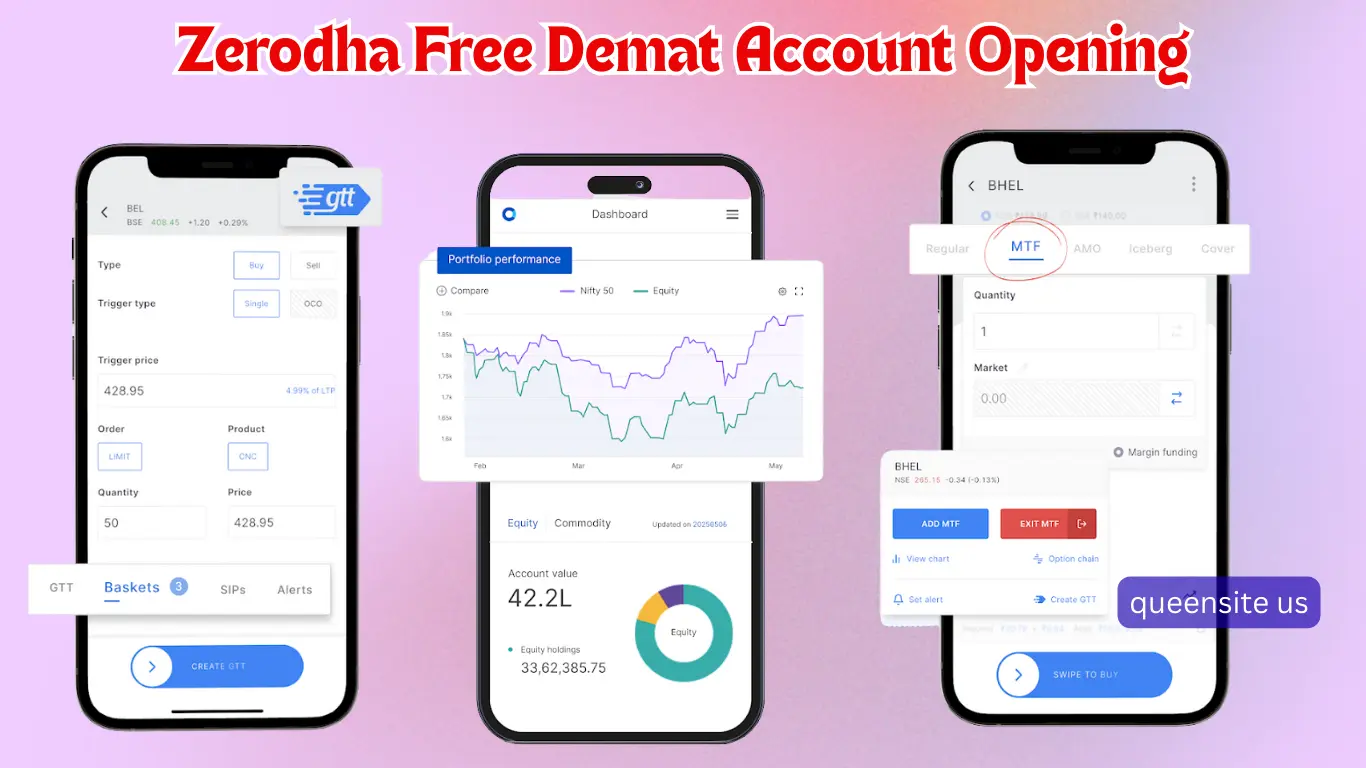
Hello friends, in this post, we are going to see how to open a free Demat account with Zerodha for those who invest in the stock market, using only your mobile phone. So, we have many Demat brokers available—Groww, Upstox, and Angel One—but even with so many options, Zerodha is the one most widely used by people who invest in the stock market. The reason is that other brokers charge a brokerage fee for every order when you buy and sell a stock in delivery trading. However, with Zerodha, you don’t have to pay any brokerage charges. That’s why Zerodha is the most popular choice for buying and selling shares.
Step-by-Step Zerodha Demat Account Opening Guide
So, let’s see in this post how to easily open a free Demat account with Zerodha using your mobile phone. The link to open a free Demat account with Zerodha is given below. Click on that link to go to the Demat account opening page. Once you are on the opening page, it will first ask for your mobile number. Enter your mobile number. So, as far as possible, for the mobile number, enter the mobile number that is linked to both your account and your Aadhaar, and click Continue. After clicking Continue, you will receive an OTP on that mobile number on the next page. Enter the OTP and verify it.
Once verified, you need to log in to the next page. So, it will ask if you want to log in using ‘Continue with Google’—that is, using the Google account logged in on your mobile—or if you want to log in by separately providing your name and email. As far as possible, click ‘Continue with Google’ and log in using the email ID that is linked to your mobile. After logging in, the next page will ask for your PAN number and date of birth. Enter your PAN number correctly. After entering it, there will be a calendar symbol in the center below; click on it and enter your date of birth.
After entering and clicking Next, the next page will show ‘What product would you like to start with?’. Here, you will see Equity Mutual Fund first, followed by Futures and Options, and then Commodity. In this, Mutual Fund and Equity will be enabled by default. Let it remain enabled. So, after that, if you are going to do futures and options trading—F&O trading—then only enable the second option; otherwise, leave it as it is. If you choose to enable this F&O option, it will definitely ask for your income proof. So, only use it if you are going to do trading; otherwise, leave it as it is.
Aadhaar KYC Process in Zerodha Demat Account Opening
The same applies to commodities. After that, select whatever is necessary below. As far as possible, select only the Equity and Mutual Funds options that are listed first. After selecting, there will be an ‘I Agree’ box below; click on it and then click on Continue. As soon as you click Continue, the next page will ask you to do Aadhaar KYC. It will say Aadhaar KYC, and below it, there will be a Continue button.
When you click the Continue button, it will ask for your Aadhaar number. Enter your Aadhaar number in the first box. Below, you will see ‘Enter the following text in the box below.’ So, enter the text that is in this box into the adjacent box, and then click the Next button below.
Documents Required for Zerodha Demat Account Opening
Once you click, you will now have to upload your documents from your DigiLocker. That is, you will have to upload your Aadhaar card and PAN card from DigiLocker. You should already have an account in DigiLocker. So, it will ask for your DigiLocker PIN. Enter your DigiLocker PIN and click on Continue. Immediately after clicking Continue, on the next page, you will see your Aadhaar and PAN details ticked at the top. If they are not ticked, select both of them and then click on the ‘Allow’ option at the bottom. As soon as you click it, you will see a ‘Success’ message.
After that, on the next page, you will be asked for your basic details. What is your mother’s name? It will ask whether you are married or single. It will also ask what your annual income is. Then, you will need to provide your trading experience, whether you have any experience so far and how many years of experience you have. After that, you need to specify your occupation.
Then, you will see an option like ‘Preference for Running Account Statement.’ Here, you need to select whether you want the statement of the amount you have in this Demat account to be sent monthly or quarterly. So, select according to your preference. After that, there will be a question, ‘Are you a politically exposed person?’. Select ‘No’ and then click on the ‘Continue’ button below.
Linking Your Bank During Zerodha Demat Account Opening
After clicking, you now need to link your bank account. The account you link here is the account from which you can add money to this Demat account. So, carefully select the correct account and add it. So, there are many options to add here: Google Pay, Paytm, and PhonePe. You can link your UPI ID like this, or if you are going to enter your bank account number, you can click on the ‘Enter Details Manually’ option at the bottom and enter your bank account number and IFSC code. Otherwise, you can link your UPI ID. Do whatever is comfortable for you.
After you do that, on the next page, it will ask you to capture your photo. It will say Webcam Verification. There will be a capture button below to open the camera. So, take your photo and upload it. After taking and uploading the photo, it will show Document Upload. First, your signature; for the signature, you will have to sign on the display itself.
When you click on ‘Sign,’ you will be able to sign on the display. After that, there will be a Bank Proof option below. This detail will be asked if you have manually entered your bank account details. Click on the Bank Proof upload option, take a clear photo of the front page of your bank passbook, and upload it. After uploading, click continue.
After clicking continue, on the next page, it will ask whether you want to add a nominee or not. You should definitely add a nominee. So, even if you don’t add it now, you can do it after opening all the demat accounts. If you are going to do it now, click on ‘Add Nominee’ and provide all the details of the nominee you want to add—their name, date of birth, PAN number, and all other details. If you don’t want to do it now, you can select the second option, ‘Do this later,’ and click continue. My suggestion is to add it now if possible.
Final e-Sign to Complete Zerodha Demat Account Opening
After adding, there will be one last step asking you to ‘Continue.’ Click on Continue. After clicking Continue, there will be three boxes to accept the terms and conditions; click on them and then click on ‘Sign Now.‘ On the next page, there will be a terms and conditions statement like, ‘I have read the terms and conditions. ‘ Click on it, enter your 12-digit Aadhaar number, and then click on the ‘Send OTP’ button. As soon as you click, an OTP will be sent to the mobile number linked to your Aadhaar. Enter the OTP correctly and then select the ‘Verify Sign’ option.
Once you submit, all the processes will be completed, and your complete form will appear. Scroll through the form and check if everything is correct. After checking, there will be an option called ‘Sign Now.’ As soon as you click on that option, this page will reappear. So, in this, they will again ask for your Aadhaar number. So, enter your Aadhaar number and click on ‘Send OTP.’ As soon as you click, that’s it; you will get a message saying, ‘Your document was signed successfully.’
So now we have finished signing everything. As soon as you finish, on the next page, you will see ‘Congratulations’ displayed. In this, you will see your user ID—’Your User ID’—followed by a six-digit number mixed with alphabetic letters. Take a screenshot of this user ID. After taking the screenshot, there will be an option called ‘Login to Guide.’ If you click on that option, you will be taken to the page to create a password. It will ask for a password and then a confirmation password. Once you create the password, everything is complete. They have given you the user ID, and you have created the password.
So, after we complete this process, it will take up to 24 hours for this account to be activated. So, after this, if you are going to invest in mutual funds, you need to use Zerodha’s ‘Coin’ app. If you open the Google Play Store and search for ‘Zerodha Coin,’ you will find the mutual fund app.
So, you can log in to that app using the username and password you received and make your mutual fund investments. Similarly, if you are going to invest in the stock market, you can open the Play Store and search for ‘Zerodha Kite,’ and you will find this application. This application will have all the options for investing in the stock market. So, it’s the same process; you can use it by entering your user ID and password.
Both are separate apps—the Zerodha Kite app for stocks and the Zerodha Coin app for mutual funds. So, that’s all for this post. I have clearly explained how to open an account with Zerodha and which app to use for investments after opening the account.
The important thing is that you will definitely have to wait for 24 hours. After waiting, you will receive a message in your email stating that your account is ready. Even if you open the application, it will show the status; if it’s not ready, it will indicate that it’s still pending. Similarly, after it’s ready, it will show that it’s ready. So, after seeing that it’s ready, you can continue your investment journey.